
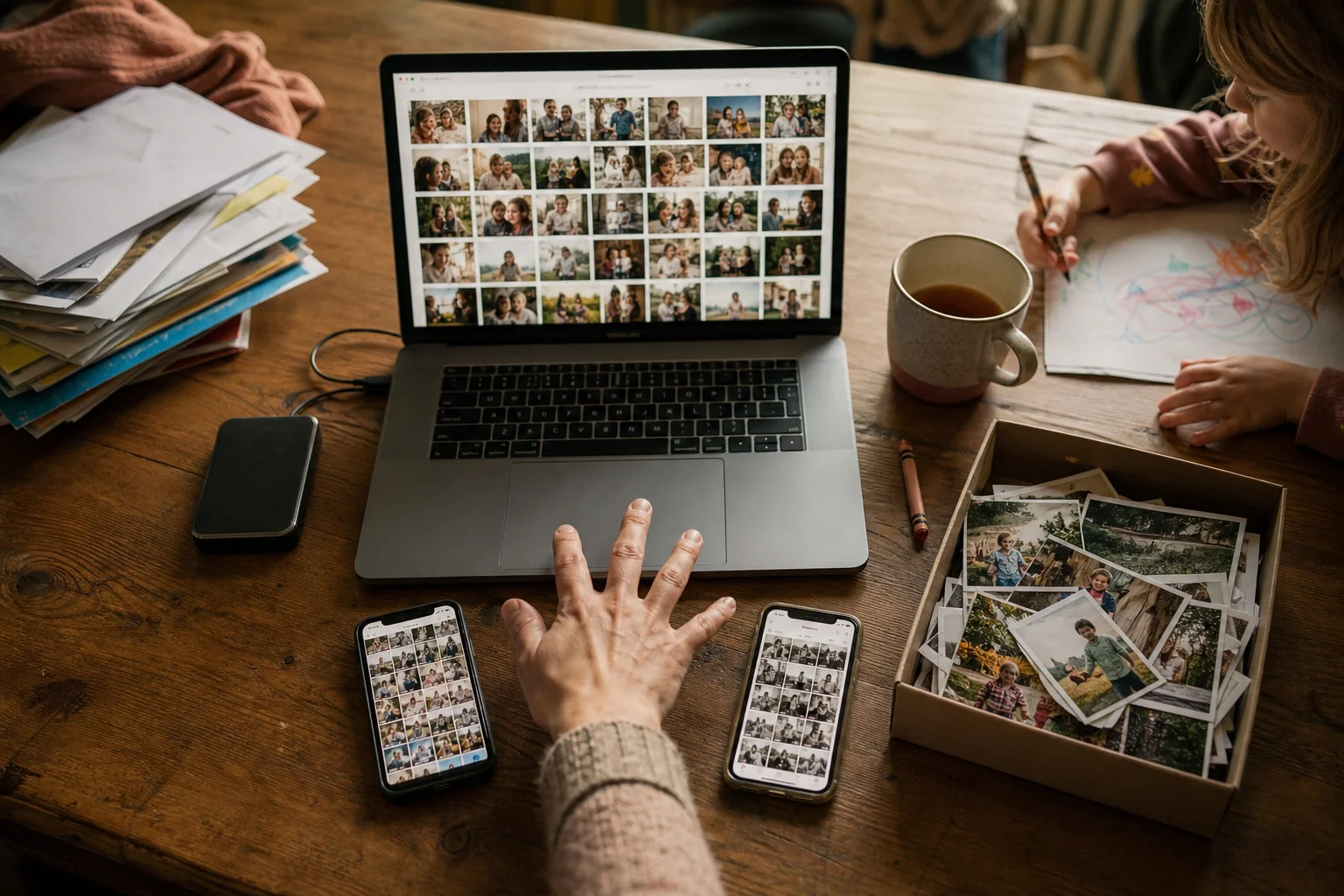
Photo organization programs matched to five common jobs
A household with 42,000 photos split across an iPhone, an Android phone, and a Windows computer may need several tools. These recommendations rank products within a specific use case, rather than forcing them into one absolute hierarchy.
- Choose Lightroom Classic if the Windows computer will be your main library hub and you want cataloging alongside non-destructive editing. Consider Mylio Photos if access across several devices is the bigger priority. Both require setup and ongoing library habits.
- Choose Capture One Pro if RAW processing or studio work drives your organization system. Lightroom Classic is the broader alternative for photographers who want editing and long-term catalog management together. Neither is especially casual for a family camera roll.
- Choose Apple Photos for an Apple-centered household. Choose Google Photos when iPhone and Android access need to coexist. Their convenience comes with ecosystem, storage, and cloud-account tradeoffs.
- Choose PhotoSweeper for duplicate and near-duplicate cleanup on a Mac. Treat it as a review assistant, since cleanup software does not replace a full library manager and automatic deletion deserves caution.
We make Momora.
- Choose Momora if your goal is a private family timeline with selected photos, stories, quotes, voice recordings, and artwork. It is available for iPhone and Android, but it is not a Windows photo manager, advanced editor, bulk cleanup tool, or independent backup system.
Every option here has meaningful limits. The useful question is which job you need solved first.
Match the tool to the job
Photo apps often combine several functions, but they rarely handle each one equally well. Separate the jobs before comparing products:
- Organization makes photos easier to find through albums, folders, dates, ratings, tags, captions, locations, or people labels.
- Storage gives the image files somewhere to live, such as a computer, external drive, phone, or cloud account.
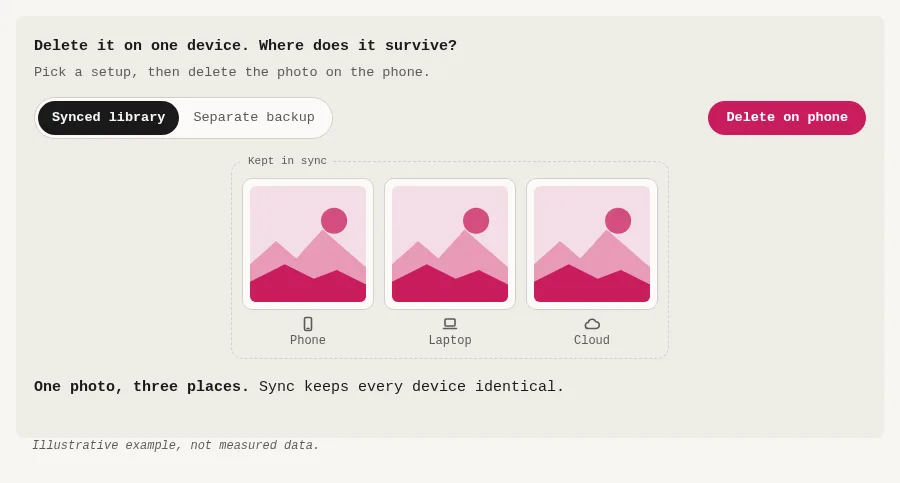
- Syncing keeps a library and its changes available across devices. Depending on the service and settings, deletions can carry across synced devices, so sync should not automatically count as an independent backup.
- Editing adjusts the appearance of a photo. Some programs offer basic crops and filters, while others manage RAW files and detailed, non-destructive edits.
- Cleanup finds duplicates, near-duplicates, screenshots, or other clutter for review. It reduces library size but does not protect the files you keep.
- True backup maintains a separate, recoverable copy if the main library is deleted, corrupted, lost, or damaged.
For the household with 42,000 photos, searchable albums solve the "Where is that beach picture?" problem. Duplicate detection solves the "Why do we have nine copies?" problem. A second recoverable copy solves the "What happens if the computer or cloud library fails?" problem.
CISA recommends three copies, using two storage-media types, with one copy offsite. The Library of Congress also recommends copies on different media in separate physical locations, plus periodic migration to current media. You may use one product for several jobs, or pair an organizer with separate cleanup and backup tools.
Before choosing, answer these questions:
- Which phones and computers must it support?
- How large is the library?
- Should originals stay local, in the cloud, or both?
- How detailed must search be?
- Do you need serious editing?
- Who needs sharing access?
- What are your privacy expectations?
- What can you spend now and each year?
Compare the options at a glance
Recommendations and limitations are editorial judgments. Price references below are dated October 2026; confirm current prices with each provider. Brand links are used when no independent current price was available.
| Recommendation and job solved | Platforms | Storage | Organization | AI/search | Editing | Privacy/sharing | Price, as of October 2026 | Main limitation |
|---|---|---|---|---|---|---|---|---|
| Lightroom: cloud library | Desktop, mobile, web | Cloud; 1 TB | Albums, ratings, metadata | Visual | Advanced RAW | Cloud sharing | US$11.99/month annually or $119.88/year | Cloud-centered |
| Lightroom Classic: large local catalogs | Windows, macOS | Local | Collections, keywords, ratings | Metadata | Advanced RAW | Local; optional sync | Included with Lightroom; Photography plan $19.99/month annually | Steep learning curve |
| Mylio Photos: private multi-device library | Desktop, mobile | Devices, vaults, optional cloud | Folders, albums, people | Local AI, faces | Basic | Local processing | See Mylio | Limited editing |
| digiKam: free local manager | Desktop | Local | Albums, tags, dates, locations | Faces, similarity | Moderate | Local | Free; digiKam | Dense interface |
| Capture One Pro: professional shoots | Windows, macOS; mobile companion | Local | Catalogs, sessions, ratings | Metadata | Advanced RAW | Local; sharing tools | See Capture One | Poor family-archive fit |
| ON1 Photo RAW: editing and browsing | Windows, macOS | Local; optional sync | Albums, keywords, ratings | AI-assisted | Advanced RAW | Local; optional cloud | $99.99 promotional purchase | Price may change |
| Adobe Bridge: folder browsing | Windows, macOS | Local; no catalog | Folders, keywords, labels | Metadata | Limited | Local | See Adobe | No unified library |
| Apple Photos: Apple households | Apple, web; Windows support | Device; optional iCloud | Albums, people, dates | Visual, people | Basic | Private/shared libraries | iCloud+ $0.99-$59.99/month | Best within Apple |
| Google Photos: mixed-device library | Android, iOS, web | Cloud | Albums, people, dates | Visual, people | Basic | Shared albums | See Google One | Sync is not separate backup |
| PhotoSweeper: duplicate cleanup | macOS | Local | Existing structure | Similarity | None | Local | See PhotoSweeper | Cleanup only |
| Momora: family memories | iOS, Android | Private timeline | People, date tags | Approved suggestions | Minimal | Invited family | See Momora | No desktop archive manager |
Cloud sync provides device access, but it may not provide a separate, recoverable backup.
Full-library managers for large collections
Catalog-based programs track where photos live, plus ratings, keywords, edits, albums, and metadata. Originals can stay in their folders, but both files and catalog databases need backups.
1. Adobe Lightroom Classic: best for photographers who edit
Lightroom Classic is the strongest mature desktop catalog here, with advanced RAW editing built into the same workflow.
It suits Windows and Mac users who organize, edit, and export on one main computer. Skip it if you want a simple family library or equal management from your phone.
Its catalog records file locations, edits, ratings, keywords, and metadata without changing originals. Folders mirror storage locations; collections group photos without moving them. Smart Collections apply rules such as rating or keyword.
Search uses catalog fields rather than object recognition. Originals can remain on internal, external, or network drives, although the catalog cannot live on a network drive. Previews keep disconnected files visible. Local storage offers control, but originals and the catalog require separate backups.
Adobe’s Photography plan costs US$19.99 per month with an annual commitment, as of October 2026. It includes Lightroom Classic, Lightroom, Photoshop, and 1 TB of cloud storage. Regional prices vary.
Catalogs, drive paths, and backup routines take time to learn. Older computers may struggle with large catalogs and high-resolution files.
2. Mylio Photos: best for mixed-device households
Mylio is better for personal libraries spread across Windows, Mac, iOS, Android, and attached drives. Skip it if advanced RAW editing is your priority.
It combines folders, albums, metadata filters, people, and cross-device browsing. Search and cleanup tools include face recognition, SmartTags, text recognition, duplicate detection, and reviews for similar or burst photos.
Search works offline, and files can stay on devices or attached drives. Optional Mylio Drive storage holds encrypted optimized images, while Vault drives can store full-quality copies. The local-first setup limits cloud exposure, though synchronization does not replace backups.
Check Mylio’s plans page for current pricing, as of October 2026. Initial indexing can be demanding, and editing is lighter than Lightroom Classic.
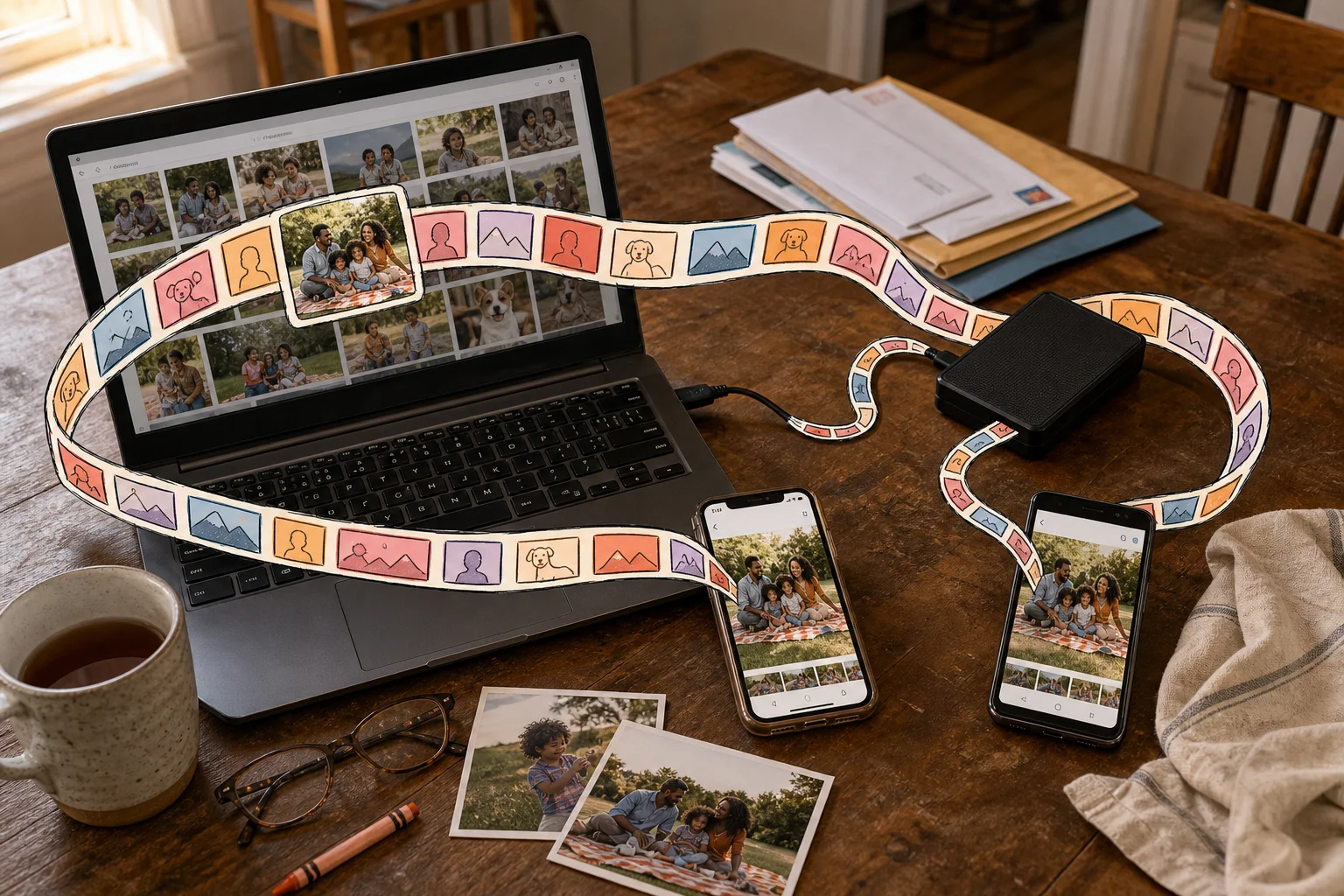
3. digiKam: best for free, local control
digiKam offers deep organization without a subscription, but its dense interface suits technical users with patience.
Available for Windows, macOS, and Linux, it manages albums, tags, ratings, dates, locations, captions, and other metadata. It also has face management, similarity search, and duplicate detection. Skip it if you need polished mobile access or built-in cloud synchronization.
Libraries stay local. You can embed metadata in image files or keep it in digiKam’s database, giving you control over privacy and portability.
digiKam is free and open source, as of October 2026. Setup and maintenance require more work than the paid options, and mobile syncing sits outside its main workflow.
Editing-first tools that also organize photos
These programs pair RAW processing with selection and organization. They work well for a vacation, event, or camera shoot. Years of screenshots, phone videos, and school pictures can expose their limits.
1. Capture One Pro
Capture One is excellent for sorting and editing dedicated shoots, but more work than most families need for a lifelong archive. It suits Windows and Mac users who care about RAW conversion, color work, tethering, and detailed selection.
Capture One offers Catalogs for long-term libraries and Sessions for self-contained shoots. Catalogs support collections, ratings, metadata, sorting, and search. Sessions keep individual projects portable. Originals can remain in regular folders, and editing is non-destructive. An iPhone app is available with eligible plans.
Sessions are especially good for selecting one shoot. Managing years of mixed family files is less convenient, and mobile access is limited. Capture One sells subscriptions and perpetual licenses; check current pricing.
2. ON1 Photo RAW
ON1 Photo RAW combines folder-based organization with advanced editing. It browses photos in their existing locations, so originals remain usable outside the application. Organization tools include tags, albums, stacks, keywords, Smart Albums, ratings, and AI-assisted keywording.
Its editing tools cover RAW processing, layers, masks, retouching, effects, noise reduction, and AI selections. Cloud Sync requires an eligible subscription.
ON1 is a capable choice for Windows and Mac users who dislike mandatory catalog imports. The tradeoff is a busy interface and more setup than casual family organization usually needs. Check ON1's current pricing.
3. Adobe Bridge
Adobe Bridge is a free file browser and metadata tool, rather than a complete photo library or backup service. It can browse files, edit metadata, batch-rename assets, and open supported RAW files in Adobe Camera Raw.
Bridge works directly with local folders and connected drives. Ratings, keywords, previews, and batch tools make it useful for an archive you already organize yourself. Files remain accessible to other applications.
It has no unified library database, cloud sync, mobile access, automatic visual search, or independent backup. Its usefulness depends heavily on the quality of your folder system.
4. Adobe Lightroom
Adobe Lightroom is the strongest option here for serious editing across desktop, mobile, and web. It combines RAW editing, ratings, albums, automatic tagging, and intelligent search.
Adobe's similar names hide a major difference. Lightroom stores originals in Adobe's cloud and synchronizes them across devices. Lightroom Classic is desktop-focused, uses locally stored originals, and relies more on manual keywords and catalog management.
Cloud storage makes Lightroom convenient on phones and tablets, but capacity and subscription costs grow with the archive. When storage fills, new photos stop backing up, syncing, and receiving automatic tags. Check Adobe's current plans, and keep an independent backup of the originals.
Apple Photos or Google Photos for a phone-first library
These services are built for the photo you take at breakfast and want to find on another screen that evening. Both handle automatic phone uploads, albums, people or visual search, sharing, and everyday edits. Neither has the metadata controls, folder flexibility, or advanced editing found in the desktop programs above.
1. Apple Photos
Apple Photos is best for households where iPhones, iPads, and Macs already share one Apple Account. iCloud Photos keeps the same library available across Apple devices, iCloud.com, and Windows through iCloud for Windows. Photos provides albums, search by people and visual content, sharing tools, and basic editing without requiring a separate photo app.
Windows access is useful but less complete than the Mac experience. You can manage iCloud Photos through File Explorer, while web access covers viewing and downloads. Apple also supports exporting originals from Photos, although iCloud.com limits each download selection to 1,000 items. A large migration may take several rounds.
Shared Album creators control membership and can remove subscribers. However, Shared Albums upload copies, and downloaded versions may lack information contained in the original. Anyone who saves a shared image to their own library keeps that copy after the album disappears.
As of October 2026, U.S. iCloud+ prices are $0.99 monthly for 50 GB, $2.99 for 200 GB, $9.99 for 2 TB, $29.99 for 6 TB, and $59.99 for 12 TB.
Best for: Apple-centered households that want minimal setup and tight integration.
Skip if: Android phones or Windows PCs are central to the household, or you want direct control over folders and metadata.
2. Google Photos
Google Photos is usually the more natural choice for a mixed iPhone, Android, and Windows household. Its phone apps and browser-based library reduce the need to treat one device maker as home base. Search, people grouping where available, albums, sharing, and basic edits cover the needs of most casual libraries.
The tradeoff is greater dependence on Google's cloud workflow. Desktop use centers on the web rather than a full local library manager, and moving a very large collection elsewhere can require an export followed by substantial sorting. Face grouping and some search or editing functions may also vary by account, region, and platform.
Google Photos storage counts against the Google Account allowance, with paid capacity sold through Google One. Pricing and plan availability vary, so check Google One's site for current pricing.
Best for: families mixing Android, iPhone, Windows, and browser access.
Skip if: you want a primarily local archive, extensive metadata tools, or the closest integration with Mac and iPhone.
Both services synchronize changes. In iCloud Photos, for example, deleting an item on Windows removes it from connected devices, with recovery available in Recently Deleted for 30 days. Keep a separate local or independent backup of originals rather than treating either synchronized library as the only recoverable copy.
Focused tools for duplicate cleanup and family memories
Finding 600 duplicate screenshots and preserving the story behind a child's first bike ride are separate jobs. PhotoSweeper handles the first. Momora handles the second. Neither replaces a full photo-library manager.
PhotoSweeper
PhotoSweeper is a Mac utility for finding duplicate files, visually similar photos, and bursts of related shots. It can compare folders on internal or external drives and libraries from Apple Photos, Capture One, and Lightroom Classic. Adobe's cloud-based Lightroom is not supported.
Its search is purpose-built for comparison rather than everyday retrieval. You can adjust similarity thresholds, limit the time between shots, and compare images across different sizes or formats. Results remain available for review before removal, while deleted files go to Trash. Locked photos can appear in comparisons but cannot be marked for deletion.
PhotoSweeper works with files and supported libraries already on your Mac. It does not provide cloud storage, mobile access, family sharing, editing, or an ongoing catalog with broad keyword and metadata tools. Privacy is largely tied to where your existing files live because the cleanup work happens on the Mac.
Current pricing could not be verified as of October 2026, so check PhotoSweeper's site for current pricing.
Best for: Mac users with a specific duplicate or near-duplicate problem.
Skip if: you need a complete, ongoing library system or use Windows.
Momora
Momora is an iOS and Android family-memory app built around selected moments rather than every photo you own. Its private timeline can combine photos, videos, typed or dictated stories, voice recordings, and scanned artwork. Family and child profiles add names, nicknames, dates, and people tags, while invited relatives can view and interact with the journal. Journals are visible only to invited family members and do not form part of a public social network.
Organization centers on chronology and family profiles. Search and browsing are designed around saved memories, people, and dates rather than folders, ratings, detailed metadata, or visual searches across an entire camera roll. Momora is a hosted service, and users can export their journal data. Its FAQ advises keeping personal copies of important originals.
As of October 2026, Momora Plus costs $99.99 per year or $12.99 per month in the US.
Best for: families who want to preserve context, including what happened, what a child said, and who was there.
Skip if: you need a desktop asset manager, advanced editor, bulk camera-roll cleanup utility, or independent backup system. Momora curates chosen family memories rather than administering every image in a large archive.
Choose based on your devices and main goal
Start with the main job. Use a full-library manager for a large local archive, an editing-first tool for RAW work, Apple Photos or Google Photos for an easy phone library, a cleanup utility for a one-time duplicate purge, or a family-memory app for stories and private sharing.
Then check operating-system support, library size, local versus cloud storage, cost, privacy controls, export options, and setup effort. Test a representative album before moving everything, including phone photos, videos, edits, and older files. Confirm that search, metadata, exports, and device access work properly.
A 42,000-photo household might use Mylio or digiKam for the main collection, Google Photos for mixed-phone access, and PhotoSweeper for occasional Mac cleanup. An Apple household might use Apple Photos while keeping exported originals. Parents could add Momora for stories, quotes, and relatives' comments, while storing originals in a broader library with an independent backup.