

Sharing Google storage doesn't share your photos
"I shared my storage with my mom. Why can't she see the baby?"
Jess, in Columbus, asked exactly that. Sharing Google One storage pools the space, not the pictures. Your family can use the same 2 TB, but nobody sees anything in your library unless you share it separately.
That's fixable, and you didn't break anything.
Jess and Dan have two kids, a 4-year-old and a baby who gets photographed roughly every eleven minutes. Grandma Pat is on an Android phone a couple of hours away in Ohio. Grandpa Ray "just wants the pictures." Aunt Mel lives in Toronto. Jess added Pat to the Google family group, waited for baby photos to show up on Pat's phone, and got a text a week later: "Am I doing something wrong?"
Pat wasn't doing anything wrong. In a Google One family group, each person's photos and files stay private unless the owner shares them. The plan pools storage capacity, not a shared library. To show Pat the baby, Jess has to share the photos or an album through Google Photos itself.
None of this makes the family group a bad buy. If everyone keeps running out of space, it does that job well. It's a storage feature, and Jess was asking it to do a photo job.
Next comes how Google Photos sharing works, method by method. After that, a set of private family apps, all judged on the same criteria, so you can pick what fits Pat, Ray, Mel and your own crew.
How Google Photos sharing works for your family
"So which button actually sends Pat the baby?"
Google Photos has three ways to share pictures. The family group from the last section is a fourth thing people mix up with them.
| Method | Who sees it | Who can add | Updates on its own |
|---|---|---|---|
| Shared album | People you invite from contacts or by Google Account | You, plus anyone you allow once collaboration is on | Yes, if you set it to auto-add certain faces |
| Partner sharing | One partner at a time | You | Yes, new backed-up photos that match go over automatically |
| Shared link | Anyone who has the link | Anyone with the link, if collaboration is on | Same as the album behind it |
| Family group | Nobody sees your photos | Nobody | Shares storage only |
Links are the loosest option. If one gets forwarded, a stranger can open the album. You can turn link sharing off, but that won't pull back copies people already downloaded.
Partner sharing can send everything or just photos of the people you pick. Dan can have new photos saved to his own library automatically, so he never has to ask Jess to "send me that one."
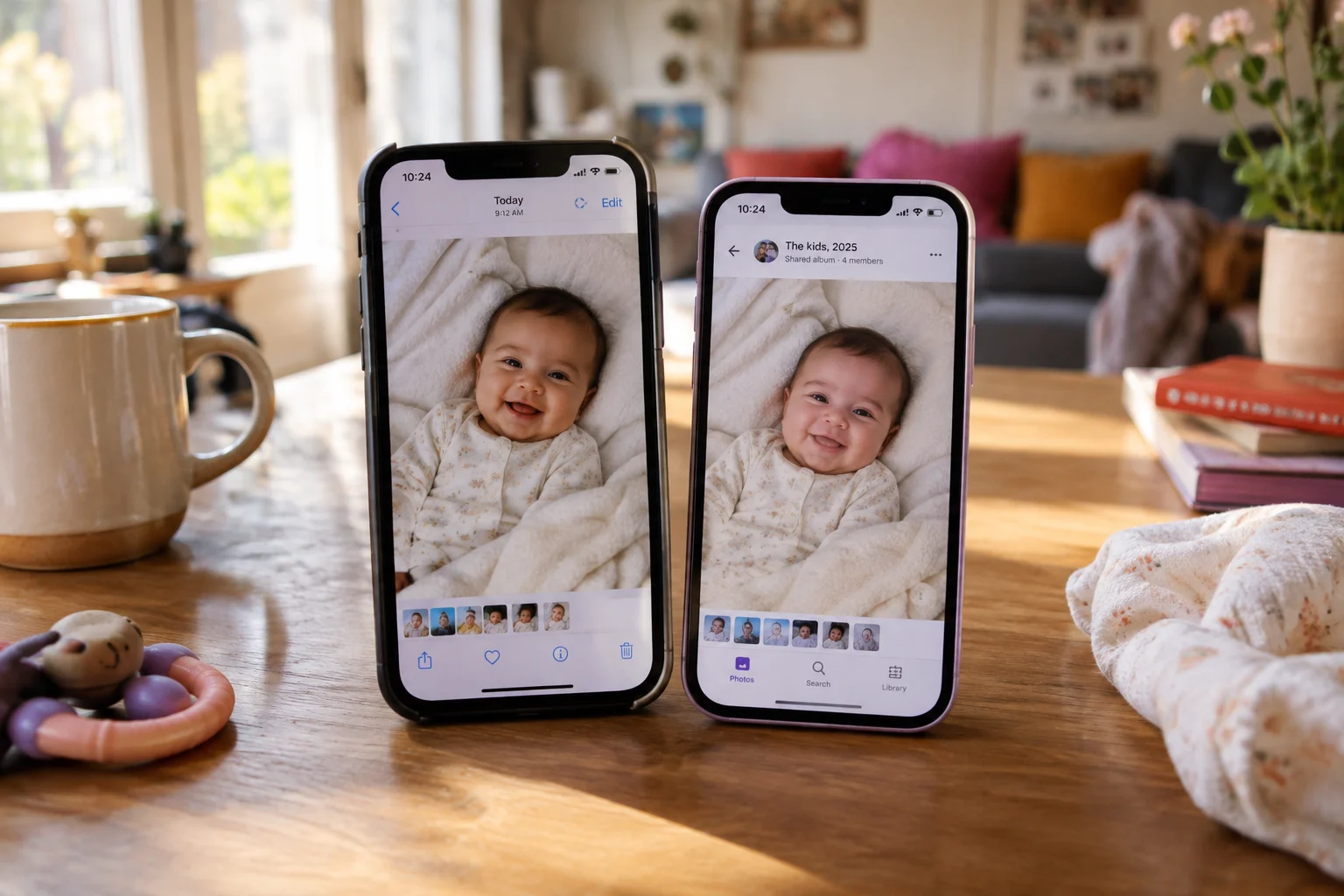
Set up one album for the whole family
- In Google Photos, select the kid photos you want, make a new album, and name it something like "The kids, 2025."
- Share it and invite Pat, Ray and Mel from your contacts. Pat opens it on her Android phone. Mel opens it in Toronto.
- Turn on collaboration so they can add their own photos. Comments and likes are switches in the sharing settings. Leave them on and Ray can type "cute!!" under every picture.
- If you can, set the album to auto-add photos of chosen people, meaning the two kids. This uses Face Groups, which isn't offered in every region or on every account type. Your face labels stay private. Once it's on, Pat gets new photos without asking.
If you ever turn off sharing for the album, everyone else's photos and comments go with it. That includes Grandma's 40 photos from Thanksgiving. Our private family social media guide compares photo-sharing apps for different households.
For the Columbus crew, partner sharing covers Jess and Dan. One collaborative album covers Pat, Ray and Mel. The family group shares none of the photos, which is how Jess ended up getting that text from Pat.
Google family group rules and limits
"Wait, Mel can't join because she lives in Canada?"
Right. A Google family group is built for sharing a storage bill. The rules make sense for that job, even when they surprise you.
Setup takes a few minutes. The family manager goes to g.co/YourFamily, creates the group, and invites people by email. The manager can remove members later. Members can leave the group, and the manager can turn off Google One sharing in family settings without breaking up the whole group.
The limits:
- One family manager controls invites and membership.
- The group holds up to five other members, six people total.
- Everyone has to live in the same country as the manager.
- Kids under the minimum age need a supervised account, and removing those accounts has its own restrictions.
- Someone who switched family groups in the past 12 months usually can't join a new one.
- Storage is one shared pool with no fixed share for each person.
For the Columbus family, rule 3 takes Aunt Mel out of the group, because she lives in Toronto and Jess's group is based in the US. Rule 6 is Dan. He films every bath, every bedtime song and every attempt to eat a crayon in 4K, and all of it counts against the same 2 TB that Jess, Pat and Ray use. Once the pool fills, problems show up for everyone. Photo backups stop, Drive stops syncing, and Gmail can't send or receive. Pat finds out when her emails to the book club start bouncing.
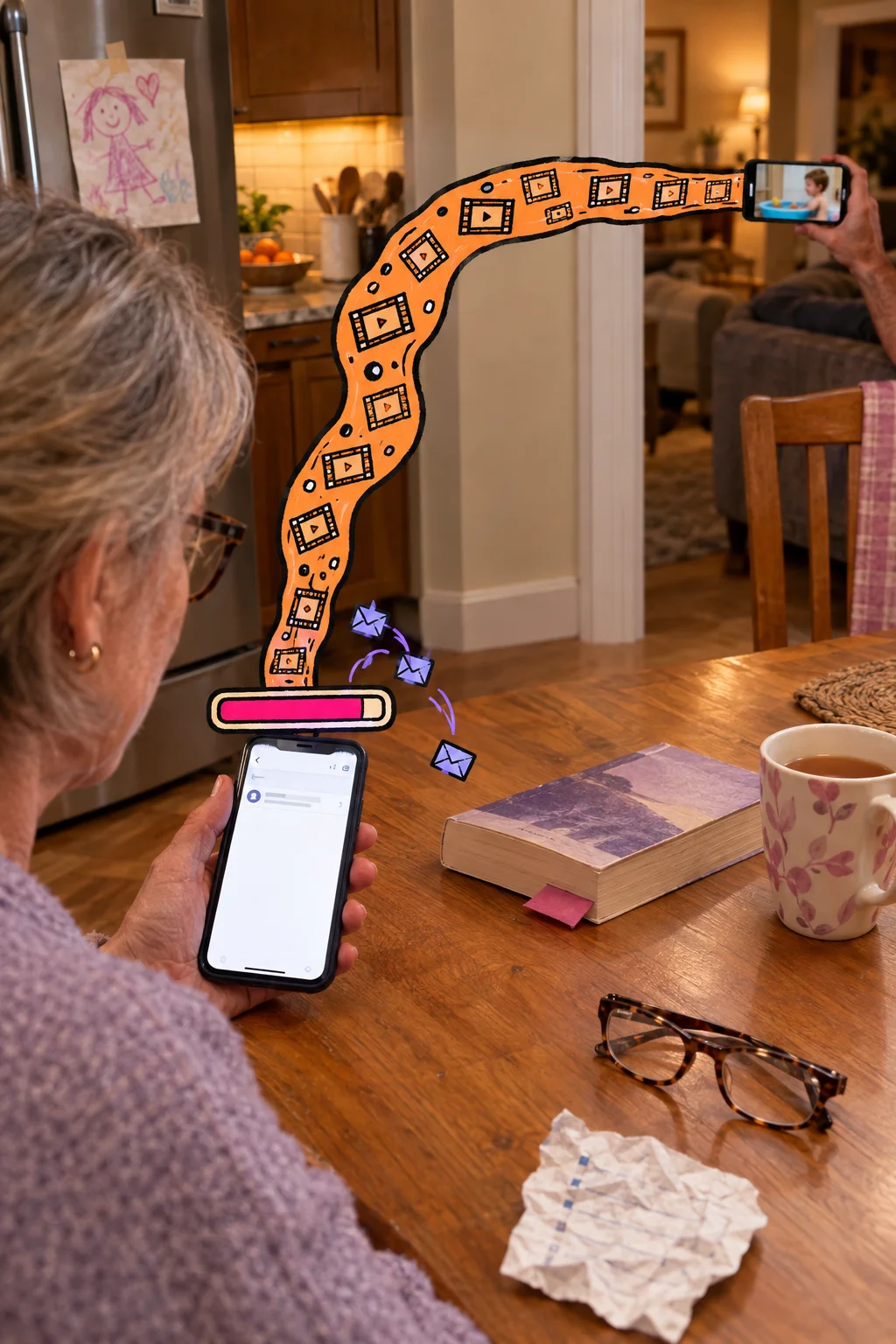
Google Photos vs. Google Drive for sharing family photos
"Should I just put everything in a Drive folder instead?"
For family viewing, no. Use Google Photos. It's built for scrolling, browsing albums and reacting to the new baby picture. Drive is a file locker. It's good for sending original files and keeping folders of documents organized. Switching doesn't save space either, because Drive and Photos draw from the same Google storage as Gmail.
Drive does one job better: handing over exact files. You share a folder by picking it, choosing Share, adding people and setting a permission level. A Viewer can open files but can't edit, comment or reshare them. A Commenter can add notes. An Editor can add, move and delete files, and can usually change who has access, so think twice before giving Grandpa Ray that role. Permissions carry down to everything inside the folder, including files added later.
Jess uses Drive for exactly one thing. Her friend Kara, a photographer, is making a canvas print of the baby's first beach day. Jess drops the full-resolution files into a folder and gives Kara Viewer access. Kara downloads them and prints.

Pat, Ray and Mel never open that folder. Their photos stay in the shared album, where browsing them takes no effort.
Four private family apps, judged the same way
"I just want Grandma to see the baby without me texting her every Sunday."
Same questions for each. Who can see it? Who can add? Can a grandparent figure it out? How much effort per memory? What do you get back as keepsakes or exports? What does it cost? They're ordered by the family each one fits. Prices are US, as of October 2026.
1. iCloud Shared Photo Library, for all-Apple households
A shared library holds up to six people, including the organizer, and everyone can add, edit and delete. Photos come straight from the iPhone camera, so effort is close to zero. Everything counts against the organizer's storage, with iCloud+ running $0.99 a month for 50 GB up to $9.99 for 2 TB.
Each person can join only one shared library, kids under 13 only with their Family Sharing group, and it's Apple-only.
Best for: homes where every phone is an iPhone. Pat's Android rules it out for Jess.
2. FamilyAlbum, for grandparent feeds
It's invite-only, with up to 100 people per album, and the free version has unlimited photo and video uploads on iOS, Android and the web. Premium adds 10-minute videos and monthly and yearly compilation videos, and one admin's subscription covers everyone.
Free videos stop at two minutes, and the browser version does less than the app.
Best for: Pat, Ray and Mel scrolling new photos, Toronto included. Our FamilyAlbum review explains its free plan and Premium extras.
3. Tinybeans, for milestone journals
Tinybeans is a private family journal only invited people can see. Memories sit in date order, and it tracks milestones like first words and first steps. Tinybeans+ is $7.99 a month or $74.99 a year.
Best for: a family logging firsts with dates. Mel can join from Toronto. Our Tinybeans app review covers costs, privacy and exports.
4. Momora, for stories, voices and books
We make Momora. It's a private family timeline with roles, so Dan can add while Pat only views, reacts and comments. It suggests days worth keeping from your camera roll and adds nothing until you approve. Spoken quotes save with the date and who said it. Scanned drawings get a placard with the artist's name and age. Dates are editable if you start late. You get lay-flat books with QR codes that play voice recordings, monthly films, and full export even after you cancel.
Momora Plus is $12.99 a month or $99.99 a year, and books cost extra. You can't pick artwork frames yet, scanning is flat paper only, and holiday cards are US and Canada only.
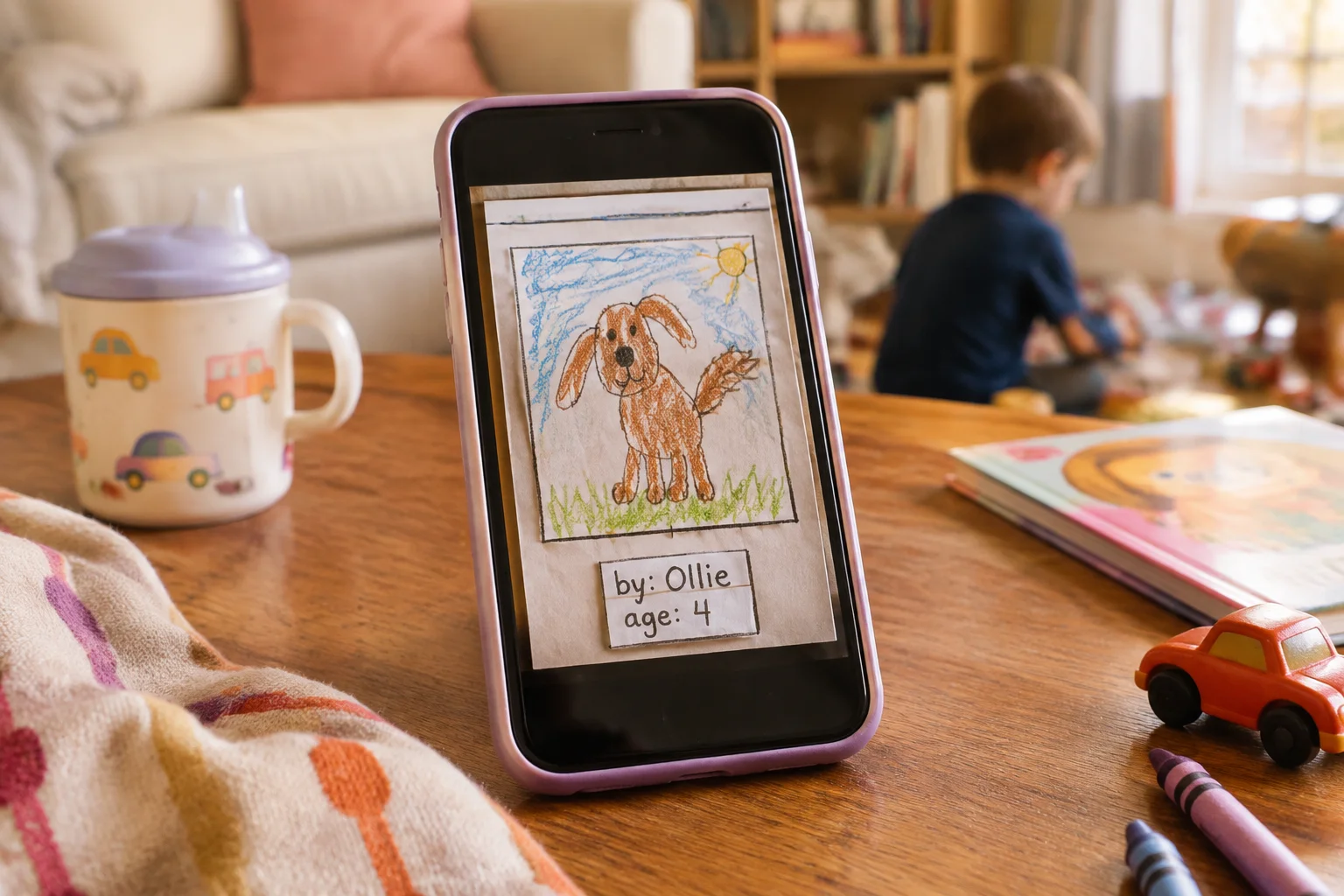
Best for: Jess, if she wants the four-year-old's "pasketti" phase saved in his own voice.
Which option fits your family
"I just want to stop being the family photo help desk."
Fair. Match the need to the tool.
If you only need more space, then a Google family group is enough.
If you have one partner and want photos shared automatically, then use partner sharing.
If grandparents just want to see new photos, then use a shared album or FamilyAlbum.
If everyone is on an iPhone in one country, then use iCloud Shared Photo Library.
If you want stories, voices, artwork and a book at the end without filling in pages, then consider Momora.
Jess keeps the family group for storage and partner sharing with Dan. For Pat, Ray and Mel, she needs one place that works on Android and in Toronto. A shared album or FamilyAlbum covers the photos. Momora covers the "pasketti" recordings too.

If Momora sounds like your family, eligible new families get a seven-day trial of the annual plan. You can export every photo, recording and word anytime, even after cancelling.
Grandma Pat has seen the baby. Mission accomplished.